
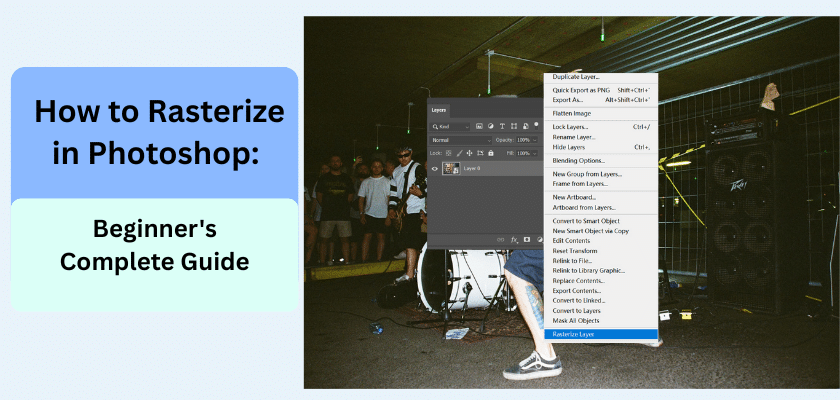
If you try to use something in the program and it doesn’t work, you may need to rasterize your layer. Rasterizing converts vector or text layers into a regular raster image composed of pixels. This simple step lets you use more editing tools on your work. In this guide, you will learn what rasterizing is, why it matters, and how you can do it easily by using the layers panel.
Understanding Rasterization in Photoshop
To rasterize something in Photoshop, you change a vector image into a raster image. Vector graphics and vector images are made of lines and curves that are set by mathematical formulas. That means you can make them bigger or smaller, and they will not lose how good they look.
A raster image is not made the same way. Instead, a raster image is made of very small squares called pixels. When you rasterize a vector image, those smooth lines from the vector graphics become tiny pixels. In this guide, you will see what happens to your layers when you rasterize. You will also find out why rasterizing is important in photo editing.
What Does It Mean to Rasterize a Layer?
When you rasterize a layer in Photoshop, you turn a vector layer into a regular pixel layer. A vector layer starts as a set of instructions for drawing a shape. You can make it bigger or smaller, and it always stays sharp.
After you make a rasterized layer, those instructions are lost. Now the layer is a grid of pixels, which is just like a photo. You can’t edit it as a vector shape or change things like the font in a text layer. If you try to change the text after rasterizing, it won’t work.
Rasterizing a layer is a permanent step. The trade-off is that while you get more ways to edit, you can lose image quality if you make the layer larger, because the grid of pixels becomes more visible. So you should think about what you want before you do it. It’s a choice between keeping the layer easy to edit and making sure it stays sharp when you change its size.
Rasterize vs Convert to Shape vs Vector Layers
It can be confusing to distinguish between rasterizing, converting to a shape, and using vector layers. A vector object, like text, starts as a special layer type. When you “Rasterize Type,” you convert the text directly into pixels. This allows you to paint on it but removes its text-editing capabilities.
“Convert to Shape” is different. This option turns a text layer into a shape layer. It’s still a vector, meaning you can resize it without losing quality and edit its path and points. However, you can no longer edit the text itself. This is useful for customizing the form of letters.
Comparing these options helps you choose the right workflow. Rasterizing is for pixel-based editing, while converting to a shape keeps the vector properties of the original vector layer for path manipulation.
| Feature | Rasterize Layer | Convert to Shape | Vector Layer |
| Format | Pixel-based | Vector-based | Vector-based |
| Scalability | Loses quality when scaled up | Retains quality when scaled | Retains quality when scaled |
| Editability | Pixel editing (brushes, eraser) | Edit anchor points and paths | Edit anchor points and paths |
| Text Editing | No | No | Yes (if it’s a text layer) |
Where to Find Rasterize Options in Photoshop
To find the rasterize option in Photoshop, you need to know where to look. You can get to it in the layers panel or use the menu bar at the top of the screen. Both ways will give you the same result. You might pick one because it works better for your way of doing things.
When you use one of these options, it will change your layer so you can use more Photoshop tools on it. Let’s go over how you use the menu bar and layers panel to get your layers set for editing.
Navigating the Layers Panel for Rasterize Photoshop
The fastest way to find the rasterize menu is in the layers panel. If you do not see this panel, you can open it by pressing F7 on your keyboard. You can also go to Window > Layers at the top to open it. The panel shows all the layers that are in your project.
To rasterize a layer, first find the layer you want to change. This layer can be a smart object, a text layer, or another layer type. Right-click on the name of the layer in the layers panel. This will make a menu appear with some choices.
In the menu, look for “Rasterize Layer” or a choice like “Rasterize Type.” Click it to turn your layer into a raster image. You can then use any pixel tools you need on it. This way is quick and simple for anyone who wants to work fast when doing photo touch-ups.
Overview of the Rasterize Menu
Other than using the layers panel, you can also use the main menu bar to turn your layers into pixel layers. First, pick the layer that you want to change. Next, go to the “Layer” menu at the very top of the screen. When you click it, you will see a dropdown. In there, you will find a “Rasterize” sub-menu with a few choices.
This menu lets you pick more exact options, depending on what kind of layer you have picked. If you know what the choices mean, you can use the one that is right for your project. This works whether you are dealing with a simple shape layer or a smart object layer that might be more complex.
Here are the most common choices you will see:
- Type: Turns a text layer into pixels.
- Shape: Turns a shape layer into a pixel layer.
- Smart Object: Changes a smart object layer into a normal pixel layer.
- Layer: A basic choice that rasterizes the chosen layer.
- All Layers: Changes all vector-based layers in your document into pixel layers at one time.
Step-by-Step Guide to Rasterize Layers in Photoshop
Now that you know what rasterizing is and where to find the options, let’s walk through the steps. It’s easy to rasterize layers, and it will soon feel normal in your editing routine. This is key because it lets you use the brush tool on vector parts.
You just need to do a few things in the layers panel. You can change your vector and smart object layers into raster layers. When you do this, you can add fine effects, edit pixels, and try out more photo editing tools.
How to Rasterize Text, Images, and Smart Objects
Rasterizing different types of layers in Photoshop works the same way. You can rasterize a text layer, a shape, or a smart object layer with just a few clicks. If you want to rasterize a layer or a vector layer, you should first duplicate the layer, especially if it is a smart object. This will help you keep the original safe.
To duplicate the layer, right-click on it and pick “Duplicate Layer.” By doing this, you get a backup. If you need to go back, you will have your original. With your duplicate ready, rasterizing the layer is easy. This way, you do not lose your work or lower the image quality by mistake.
Here are the steps:
- Click on the layer you want to rasterize in the layers panel.
- Right-click on that layer.
- Pick “Rasterize Layer” from the menu. For a text layer, you may see “Rasterize Type” instead.
- Your layer will now be a rasterized layer, changed into a pixel-based image.
Quick Method for Rasterizing Multiple Layers
What if you want to work on more than one layer at once? Rasterizing layers one by one takes a lot of time. The good thing is that Photoshop lets you rasterize many layers at the same time. This helps a lot when you have a complex project or there are a lot of vector items in your work.
First, go to the layers panel. You need to select all the layers you want to turn into pixels. To do this, just hold the Ctrl key if you are on a PC or Cmd if you use a Mac, then click on each layer you need. Once you have all these layers highlighted, you can start rasterizing. This step can save you a lot of time.
Here’s how you can rasterize more than one layer fast:
- Hold down the Ctrl or Cmd key and pick the layers you want in the Layers panel.
- Go to the top part of the screen. Click on Layer, then hover over Rasterize, and pick Layers.
- Every selected vector layer or smart object will now be turned into a new layer. Now your layers are in pixel form.
Working with Rasterized Layers
Once you have a rasterized layer, you can start using many Photoshop tools. These tools work on raster graphics. Raster graphics are made up of pixels. This lets you edit your layer with great detail, just like you do with a photo.
When you paint with the brush tool or clean up using the eraser tool, a rasterized layer lets you control every pixel. You can use this control to change and improve your designs. For example, you can add a drop shadow to give your work some depth.
Editing and Customizing Rasterized Layers
Editing a rasterized layer lets you do new things. Now, you can use the brush tool on your vector shapes and text. You get to paint right on the layer. It is easy to add colors, textures, and other nice details with the brush tool.
The paint bucket tool is good for filling parts with a solid color. The clone stamp tool helps you copy pixels from one spot to another. This is the way to remove things you don’t want or put one texture into another spot. Also, you can use specific effects and filters, which are made for images with pixels.
Here are some tools you can use on a rasterized layer:
- Brush Tool
- Eraser Tool
- Paint Bucket Tool
- Clone Stamp Tool
- Smudge Tool
Rasterize Blending Options Without Losing Effects
Sometimes you want to rasterize a layer to merge its effects or blending options. You might worry about losing quality or removing those effects. There is a safe way to do this that keeps all your work protected. The trick is to make a new layer that holds both the original layer and the effects together.
You do not have to rasterize the layer with its effects right away. Start by adding a new empty layer above your original one. Then, select this new layer and the original layer too. On Windows, press Ctrl + Alt + E. If you are on a Mac, press Cmd + Option + E. This shortcut combines a copy of your layer and its effects onto the new layer. It kind of “locks in” all the blending options and effects for you.
The best thing about this non-destructive way is that you still keep your main layer, and you can edit its effects if you need to. You get a backup copy of your layer with each specific element and blending option. Plus, you have a flat, rasterized version that you can work on more or change however you want. This keeps you away from any loss of quality.
Troubleshooting Common Rasterization Issues
Even when you are working with a simple process like rasterization, you can still face some problems. One thing many people notice is that the rasterize option is sometimes greyed out, and you can’t use it. You may also feel worried if you rasterize a layer by mistake and need to fix it.
Don’t worry, these things are usually easy to fix. When you know why they happen, you can solve the problem fast and get back to your project without getting upset. Here’s how you can deal with these common issues.
Why Is the Rasterize Option Greyed Out?
If you see that the rasterize option is greyed out, there are a few things that could be going on. The main reason is that the layer may already be set as a pixel layer. Photoshop will not let you rasterize a layer that is already rasterized. To check this, look at the layers panel and see what kind of layer it is.
Another thing that can make this happen is if the layer is locked. Check for a padlock icon near the layer name. If you see the lock, just click it to unlock. Many times, the background layer will be locked by default. To fix this, just double-click it and then press “OK” so it becomes a regular layer.
Some special types of layers, like ones that store vector data in a special container, may need something extra. For these, you might have to simplify the layer first. Most of the time, making sure the layer type is not already changed and unlocking it will fix the problem.
Undoing Rasterization in Photoshop
If you accidentally turn a layer into a rasterized layer and want to go back, there is an easy way. You can use the Undo command. Press Ctrl + Z if you use Windows, or Cmd + Z for Mac, right after you rasterize. If you have done more actions since then, you can use the History panel.
The History panel is found by going to Window > History. It will show the latest things you did. You can click on the step just before the layer was rasterized to go back to that moment. But the History panel does not keep all steps forever and it resets when you close your file.
This is why it is good to have a backup copy of your layer before you rasterize it. If you cannot undo, delete the rasterized layer and work on your backup copy of your layer instead. This way of working helps people in professional clipping path services avoid problems.
Conclusion
Rasterizing in Photoshop might look hard when you start, but if you take time to understand it, you will see it’s a very good skill for anyone new to the program. When you learn the basics of rasterization, you get more ways to work with your layers. This makes editing and changing them much easier.
Always use the Layers Panel to help you find your way. Try each step as you learn, and practice often. This will help you feel more sure about what you do. As you use Photoshop more, you will see that being able to rasterize layers will make your work faster and your designs better.
Don’t be afraid to try out new things or explore what you can create. If you want more help or information, you can ask for it or look at more guides and tips.

